Tessa Setup Instructions
Connect your Tessa Listener to your Wi-Fi network and your account
This guide walks you through getting your Tessa Listener onto the Wi-Fi network it will use every day, then linking it to your account in the Tessa Family app. First, your phone joins the Tessa Listener's temporary setup network so you can open a setup page in your browser and choose which Wi-Fi network the Tessa Listener should join.
Before You Start
- A phone (or computer) with Wi-Fi.
- The Tessa Family app installed and signed in on your phone.



- Your Tessa Listener unpacked and ready.
- Your Wi-Fi network name and password- the network your Tessa Listener will join (you'll enter these on the setup page in your browser).
Part 1: Connect your Tessa Listener to your Wi-Fi network
Your phone connects to the Tessa Listener's temporary setup network first. On the setup page, you choose the Wi-Fi network the Tessa Listener should join.
Step 1: Plug in Your Tessa Listener
New device (first use):
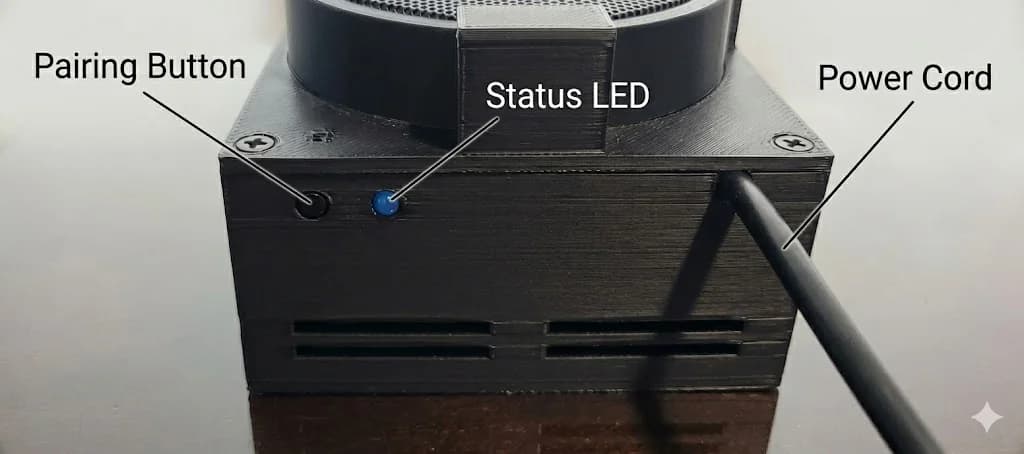
Power on your Tessa Listener. It will automatically start Wi-Fi setup and create a temporary setup network. The LED will show a "pending" pattern (two short blinks, pause, repeat). You do not need to press any button.
Only if something doesn't work or you need to change Wi-Fi later:
- Press the pairing button 4 times quicklyto start Wi-Fi setup again (e.g. to switch to a different network or if the Tessa Listener isn't responding).
Step 2: Join your phone to the Tessa Listener's setup network (Tessa-…)
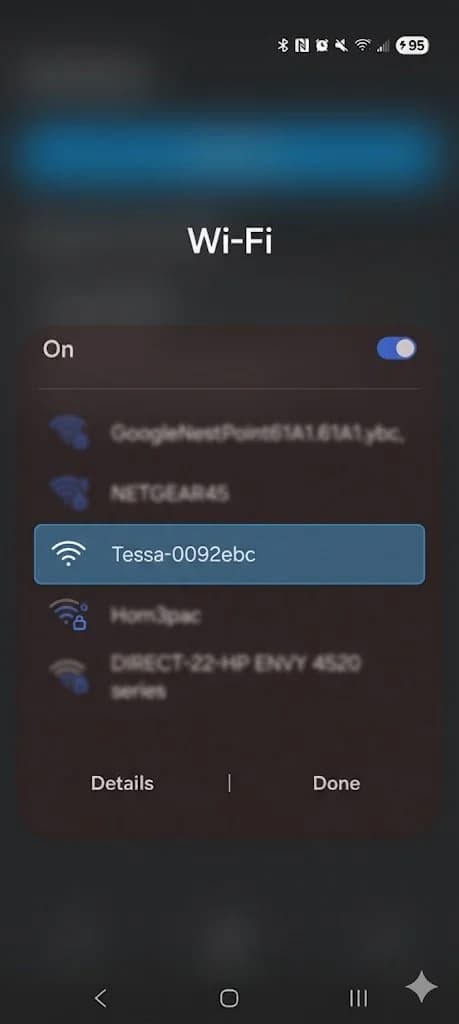
- On your phone (or computer), open Wi-Fi settings.
- Look for a network whose name starts with Tessa- (e.g. Tessa-abc1234). That's the Tessa Listener's temporary setup network - not the Wi-Fi network the Tessa Listener will use every day.
- Connect to that setup network.
- You may lose internet on that device until setup is complete - that's expected while you're on the setup network.
Step 3: Open the setup page on your phone (http://192.168.42.1)
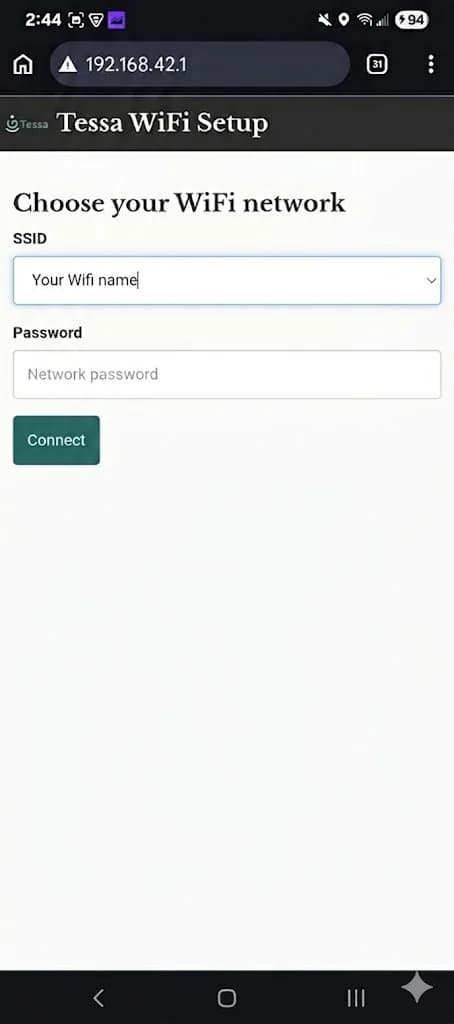
- Open a web browseron the same phone or computer that is connected to the device's hotspot.
- Go to http://192.168.42.1 (or scan the QR code below).
- You should see the Tessa Wi-Fi Setup page.

Step 4: Choose the Wi-Fi network your Tessa Listener will join
- On the setup page, select the Wi-Fi network your Tessa Listener will use from the list. This is the same network you normally use where the Tessa Listener will stay (for example, your household Wi-Fi).
- Enter the Wi-Fi password for that network.
- Tap Submit or Connect.
- Wait for the Tessa Listener to connect. The page will show a success message. The Tessa Listener's LED will change -solid when authenticated, or fast blink if you still need to complete Part 2.
The Tessa Listener will turn off its setup network and join the Wi-Fi network you chose. This can take up to a minute.
Step 5: Reconnect your phone to the Tessa Listener's Wi-Fi network
- On your phone, open Wi-Fi settings again.
- Connect back to the same Wi-Fi network you chose in Step 4 - the network your Tessa Listener is now using.
- Your phone and Tessa Listener must stay on this network for Part 2, when you'll link the Tessa Listener in the Tessa Family app.
Part 2: Link your Tessa Listener in the Tessa Family app
Step 1: Add Device from Tessa Family app
- Open the Tessa Family appand make sure you're signed in.
- Make sure your phone is on the same Wi-Fi network as your Tessa Listener - the network you chose in Part 1, Step 4.
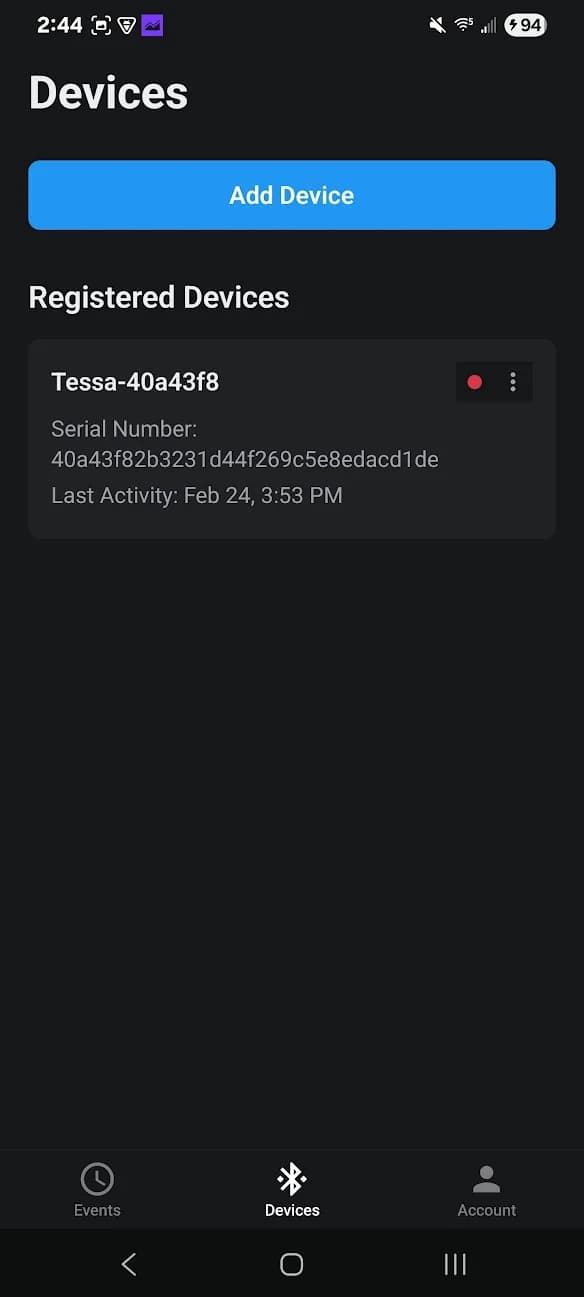
- Go to the Devices tab.
- Tap Add Device.
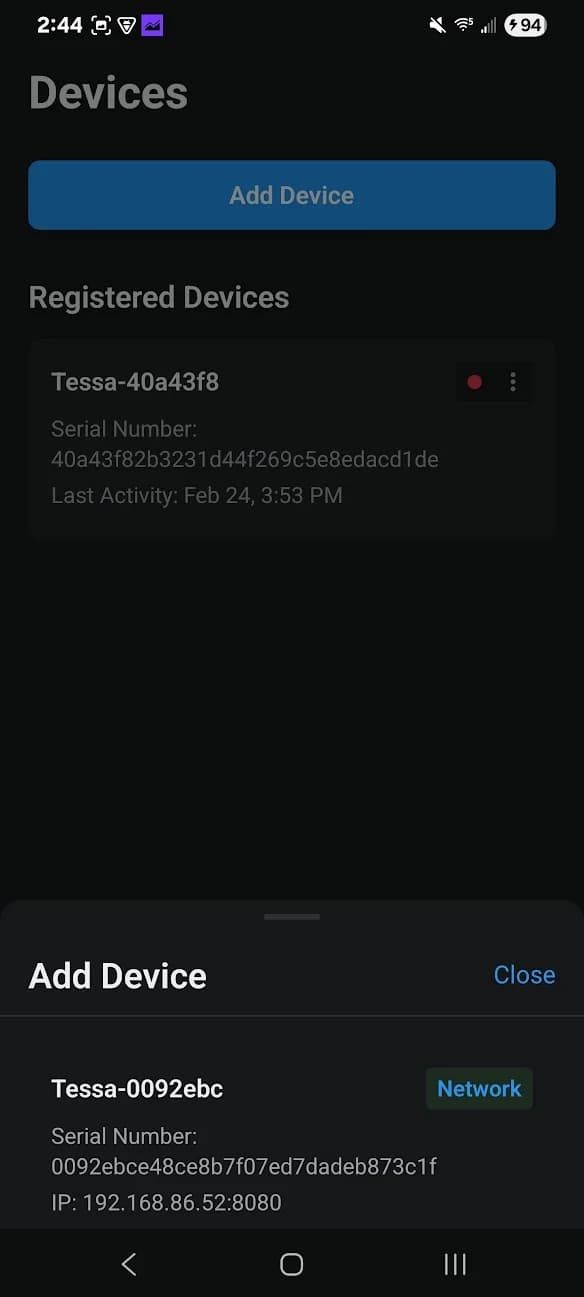
The app will scan for deviceson your network. You'll see "Scanning for devices…". This may take 10 to 30 seconds if the Tessa Listener just joined Wi-Fi. If your Tessa Listener doesn't appear, press and hold the pairing button for 3 seconds, then try again.
Step 2: Select Your Tessa Listener
- When your Tessa Listener appears, it will show as a Network device (e.g. Tessa-xxxxxwith a "Network" badge).
- Tap the Tessa Listener to start pairing.
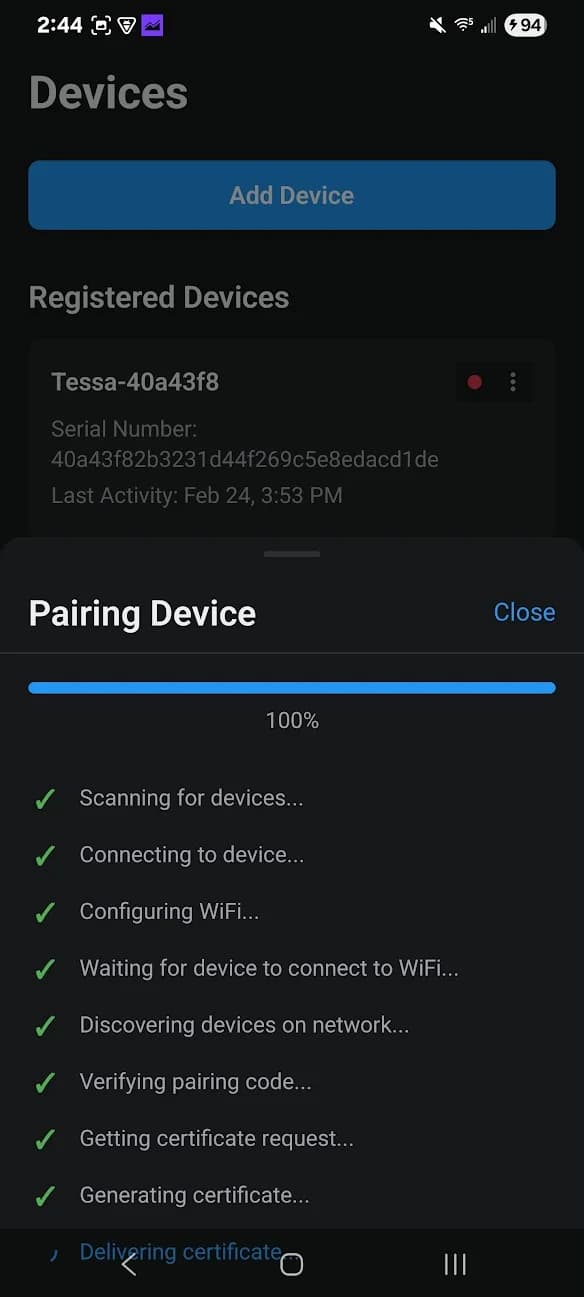
- Wait for pairing to complete. The app will show progress.
Step 3: Wait for Completion
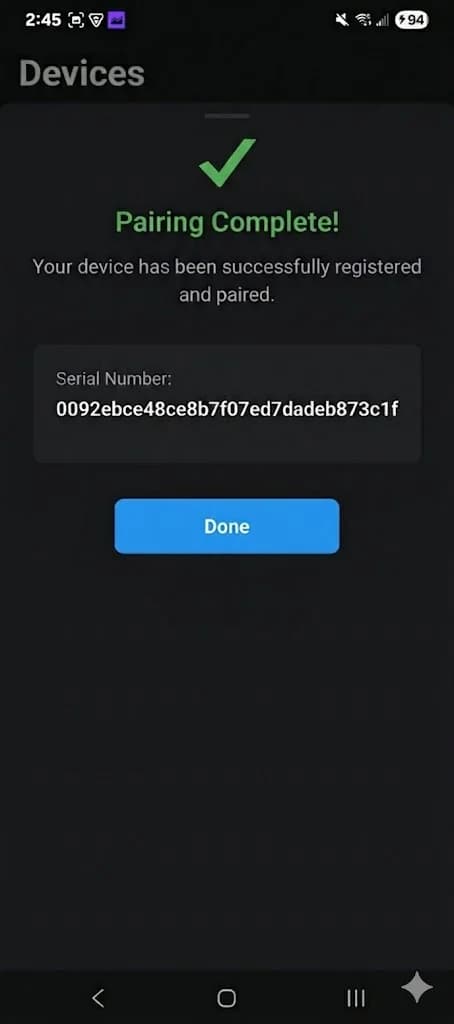
- You'll see a success screen in the app.
- Tap Done to close the flow.
- Your Tessa Listener will appear in the Devices tab, connected to Wi-Fi and linked to your account. The LED will usually turn solid when authenticated.
Troubleshooting
"Scanning for devices…" but nothing appears
- Ensure your phone is on the same Wi-Fi network as your Tessa Listener (the network you chose in Part 1, Step 4).
- Wait 30-60 seconds after the Tessa Listener joins Wi-Fi; discovery can take a moment.
- If it still doesn't appear: Put the Tessa Listener in pairing mode by holding the button for about 3 seconds, then try Add Device again.
Device doesn't show the Wi-Fi Setup page
- Confirm your phone is connected to the Tessa Listener's setup network (network name starting with Tessa-), not your everyday Wi-Fi network.
- In your browser, try opening http://192.168.42.1.
- If the setup page still doesn't load: Press the pairing button 4 times quickly, reconnect to the Tessa Listener's Tessa-… setup network, then try the browser again.
Device doesn't join the Wi-Fi network after entering credentials
- Double-check the network name and password (case-sensitive).
- Ensure the network uses WPA2 or WPA3; some older or enterprise networks may not be supported.
- To try again: Press the pairing button 4 times quickly, reconnect to the Tessa Listener's setup network, and re-enter the Wi-Fi network and password your Tessa Listener should join.
Pairing fails (e.g. "Invalid pairing code" or "Certificate delivery failed")
- Ensure your phone and Tessa Listener are on the same Wi-Fi network and have a stable connection.
- Then: Unplug the Tessa Listener, wait a few seconds, then plug it back in. Put it in pairing mode by holding the pairing button for 3 seconds. In the app, tap Add Device again and select the Tessa Listener when it appears.
I need to change the Wi-Fi network for my Tessa Listener
- Press the pairing button 4 times in quick succession and wait for the LED to change to a fast double blink.
- Then follow Part 1 on this page.
I have an older Tessa Listener
If your Tessa Listener uses the earlier setup (e.g. Bluetooth pairing and a physical button press to enter pairing mode), we have separate instructions for you. View setup instructions for older Tessa Listeners.
If you still can't complete setup, note any on-screen error message and contact support with your Tessa Listener name and app version.